ImageTranslate.AI vs Google Translate: Which Tool is Right for You?

Corey
7/31/2026

When Maria, a small business owner from Barcelona, decided to expand her handmade jewelry store to Amazon Japan, she hit an unexpected roadblock. Her product images—carefully designed with Spanish descriptions—needed to be translated. She tried Google Translate's camera feature first. It worked, sort of. She could read the translations on her phone screen, but there was no way to export a properly formatted image she could upload to Amazon. After hours of screenshots and manual photo editing in Canva, Maria discovered ImageTranslate.AI. Twenty minutes later, she had 50 product images translated into Japanese, with layouts perfectly preserved. The time savings alone paid for a year's subscription. If you're trying to decide between Google Translate's free image translation and a dedicated AI tool like ImageTranslate.AI, you're asking the right question. The answer isn't always "pay for the premium tool"—sometimes Google Translate is genuinely sufficient. But understanding when each tool excels will save you hours of frustration and potentially thousands in lost opportunity. This comparison cuts through the marketing claims and breaks down exactly what each tool does well, where each falls short, and which scenarios call for which solution.
At a glance: quick comparison
Before diving deep, here’s the fundamental difference:
- Google Translate is a general-purpose translator with image capabilities. It’s great for understanding foreign text quickly, but it doesn’t generate an export-ready translated image.
- ImageTranslate.AI is purpose-built for image translation. It reconstructs the image with translated text, preserving fonts, colors, and layout—ready for publishing or printing.
| What you need | Google Translate | ImageTranslate.AI |
|---|---|---|
| Understand text quickly | ✅ Best-in-class (camera overlay) | ⚠️ Requires upload + wait |
| Export a translated image | ❌ No | ✅ Yes |
| Preserve layout/fonts/colors | ❌ Basic overlay only | ✅ Reconstructed output |
| Batch workflows | ❌ No | ✅ Professional+ |
| Offline use | ✅ Yes | ❌ No |
Now let’s unpack what these differences actually mean in practice.
Google Translate: the free standard
What it does well
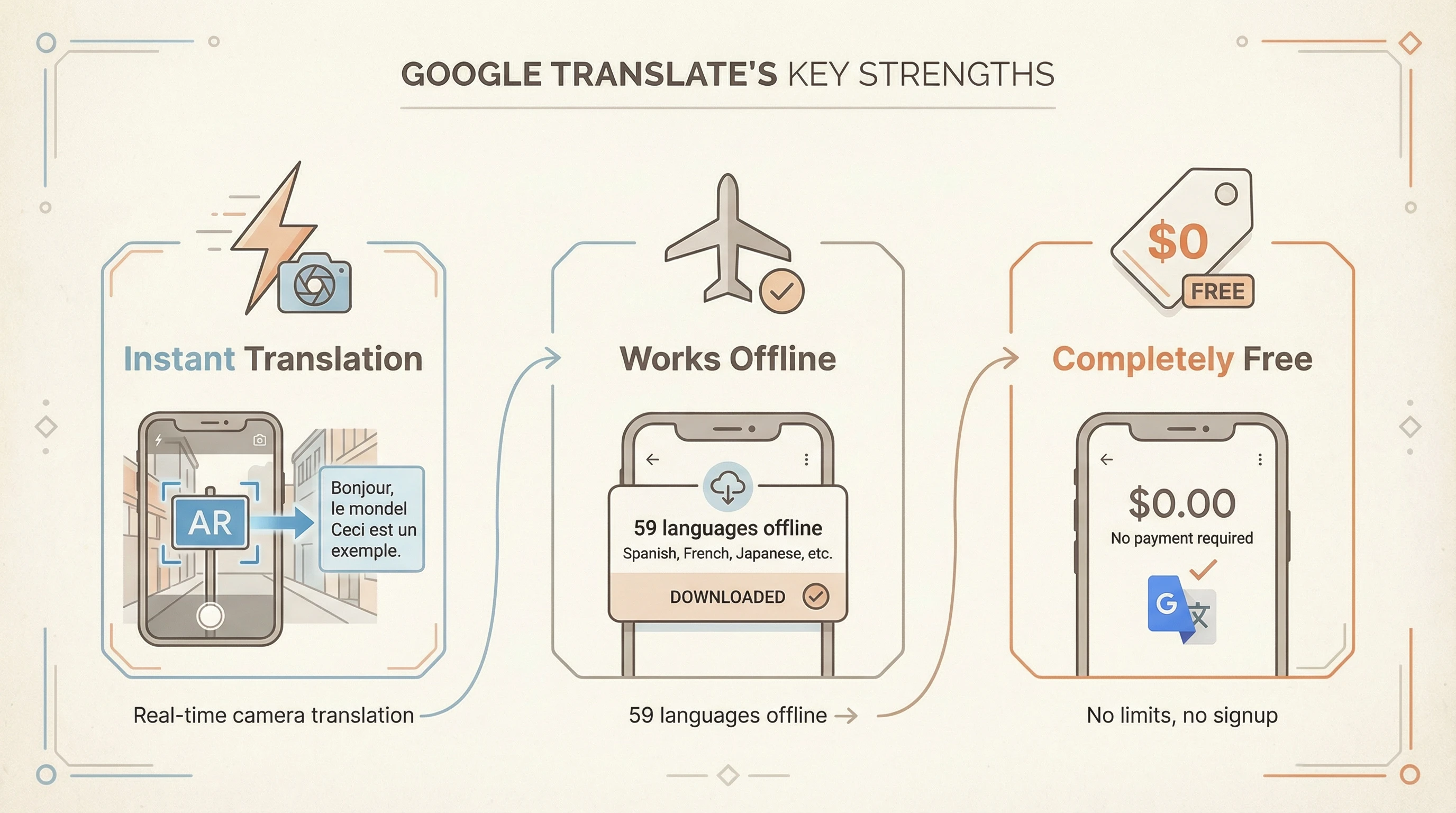
Google Translate has been refining its image translation for over a decade, and it shows in three key strengths:
- Instant, real-time translation
- Point your phone at a menu in Tokyo, and English text overlays Japanese instantly. No upload, no processing time—perfect for travelers who need answers now.
- Offline capability
- Download language packs in advance, and Google Translate works without internet. Offline OCR isn’t quite as strong as online, but it’s remarkably functional.
- Zero cost and learning curve
- It’s free, requires no signup, and anyone can use it in seconds.
Where it falls short
- No exportable output
- Google Translate shows you the translation, but you can’t save a properly formatted image. Your only option is screenshotting, which usually means:
- Lower image quality
- Watermarks or interface elements in frame
- Manual cleanup needed
- Not suitable for printing or publishing
- Google Translate shows you the translation, but you can’t save a properly formatted image. Your only option is screenshotting, which usually means:
- Basic layout handling
- The overlay is readable, but it doesn’t preserve design. Text appears in generic styling over the original.
- No batch processing
- Translate 50 product images? You’ll do it one-by-one—manually.
- Inconsistent with complex designs
- Handwriting, decorative fonts, and busy backgrounds often reduce OCR reliability. Missed text = missed meaning.
Verdict: Google Translate is right when…
- You need to understand what text says (not create a new image)
- It’s a one-time or occasional need
- You’re traveling or away from a computer
- The content isn’t for professional or commercial use
- You don’t need to preserve visual design
ImageTranslate.AI: the professional solution
What sets it apart
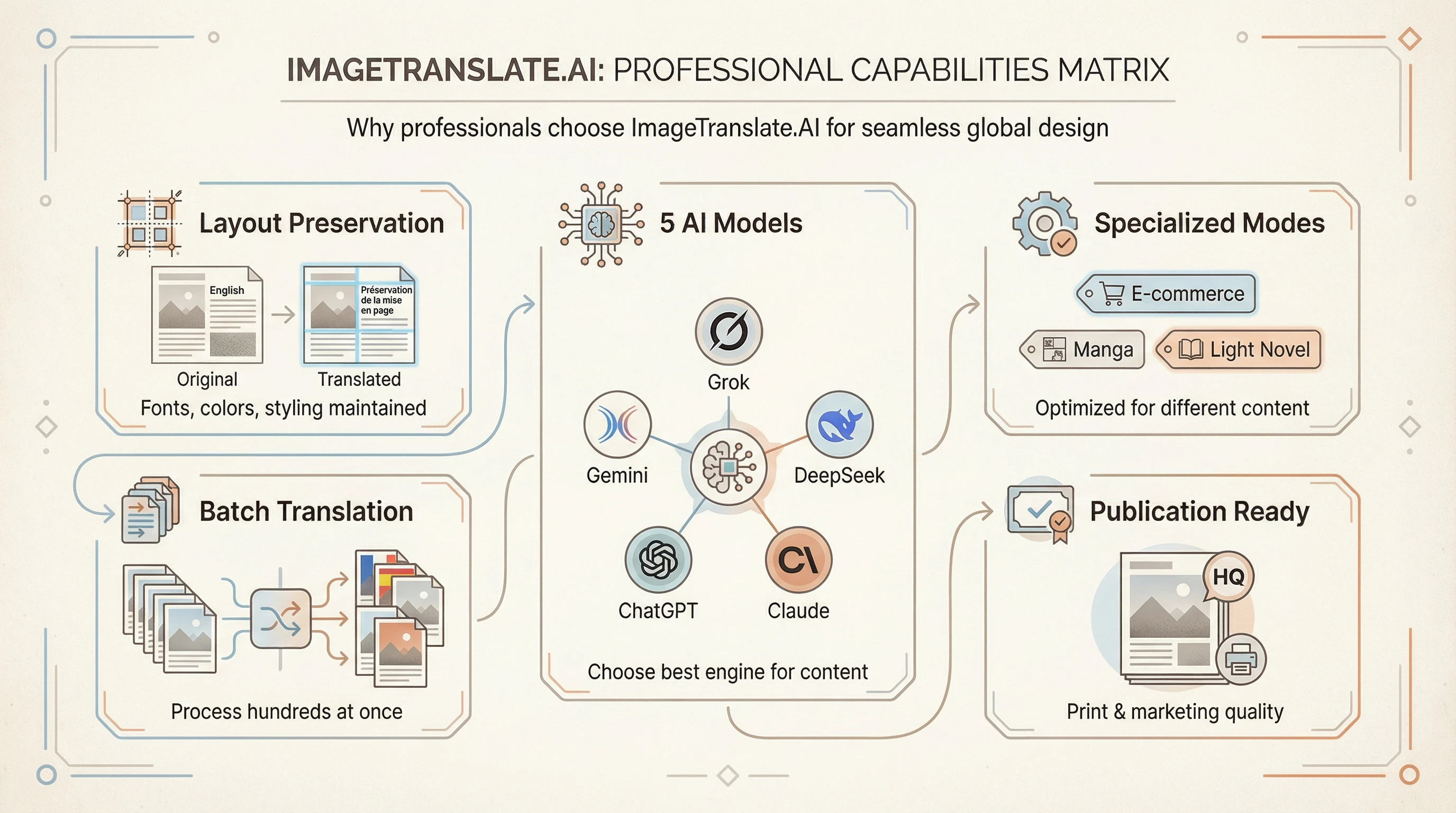
- True layout preservation
- ImageTranslate.AI reconstructs your image: translated text appears in the same position with matched (or similar) fonts, identical colors, and preserved styling.
- Multiple AI translation engines
- Unlike Google Translate’s single engine, ImageTranslate.AI offers multiple models so you can pick the best result for your content:
- Grok (free tier)
- Gemini (Starter+)
- DeepSeek (Starter+)
- GPT-5 (Starter+)
- Claude (Starter+)
- Unlike Google Translate’s single engine, ImageTranslate.AI offers multiple models so you can pick the best result for your content:
- Specialized modes for different content
- Different content benefits from different handling:
- E-commerce Mode: Optimized for product images, brand names, and marketing language
- Light Novel Mode: Better paragraph handling for longer text blocks
- Manga Translator: Specialized for speech bubbles and sound effects
- Different content benefits from different handling:
- Batch translation
- Professional and Enterprise plans support batch processing: upload multiple images, select multiple target languages, and get organized ZIP files back.
- Example: Upload 30 product images, select Japanese, German, and Spanish, and receive 90 translated images (30 × 3) in one run.
- Commercial use and export quality
- You get high-resolution images ready for:
- E-commerce platforms (Amazon, Shopify, Alibaba)
- Print materials (catalogs, brochures, packaging)
- Marketing campaigns
- Website localization
- Social media across markets
- You get high-resolution images ready for:
Where it has limitations
- It costs money
- Beyond the free tier (2 images/day), plans range from $8.30/month (Starter) to $83.30/month (Enterprise), billed annually. Great value for frequent use, hard to justify for rare one-offs. See pricing.
- Requires upload + processing time
- It’s not real-time. Expect ~10–30 seconds per translation—fine for batch work, less ideal on-the-go.
- More choices = slightly steeper learning curve
- Models, modes, batch settings—power users love the control, casual users may prefer simplicity.
- Internet required
- No offline mode.
Verdict: ImageTranslate.AI is right when…
- You need professional-quality output for commercial use
- Layout/design preservation matters
- You process images regularly (or in bulk)
- Poor translations cost money (lost sales, brand damage, rework)
- Time savings justify the subscription
- You want consistent results at volume
Head-to-head: feature comparison
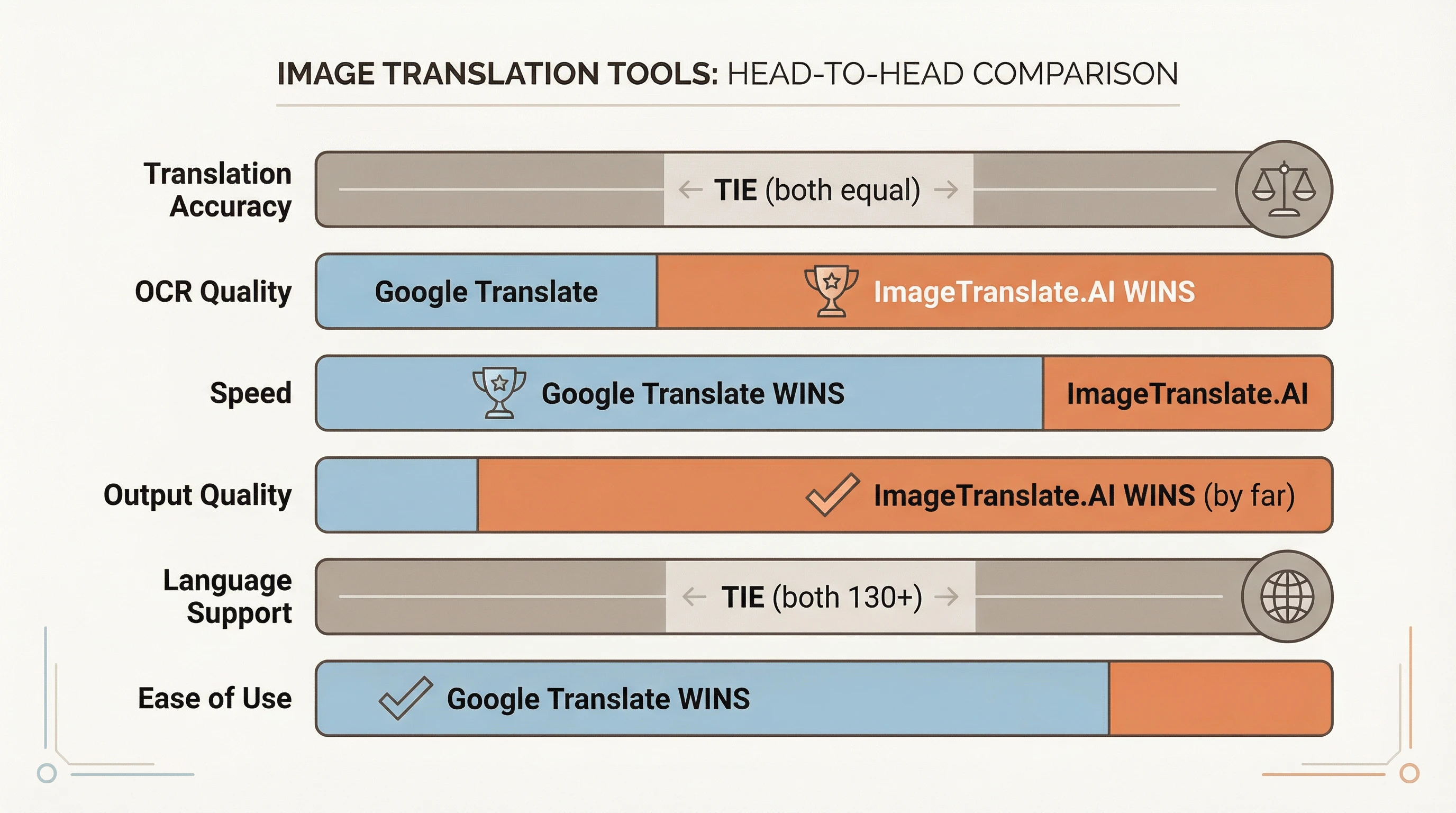
Translation accuracy
Winner: Tie (with nuance)
Both use advanced AI translation. For straightforward text, accuracy is comparable. ImageTranslate.AI pulls ahead on:
- Context awareness (thanks to multiple AI engines)
- Marketing and e-commerce terminology
- Ability to retry with a different model if the first result isn’t great
Google Translate remains strong for general content and benefits from years of user feedback refinement.
OCR quality
Winner: ImageTranslate.AI
Both struggle with extremely difficult text (decorative fonts, extreme angles, very low resolution). But ImageTranslate.AI’s specialized modes handle:
- Text on complex backgrounds more reliably
- Mixed text sizes (headlines + body text)
- Multi-region layouts (logos + descriptions + price tags)
Speed
Winner: Google Translate
Real-time overlay beats upload-and-wait every time. ImageTranslate.AI’s 10–30 second processing time is acceptable for batch workflows, but slower for quick, single-image checks.
Output quality
Winner: ImageTranslate.AI (by a mile)
Google Translate’s screenshot workflow looks amateur; ImageTranslate.AI’s reconstructed images are publication-ready.
Language support
Winner: Tie
Both support 130+ languages. Google Translate may have slightly better coverage for obscure language pairs, but for major languages both are strong.
Value for money
Winner: Depends on use case
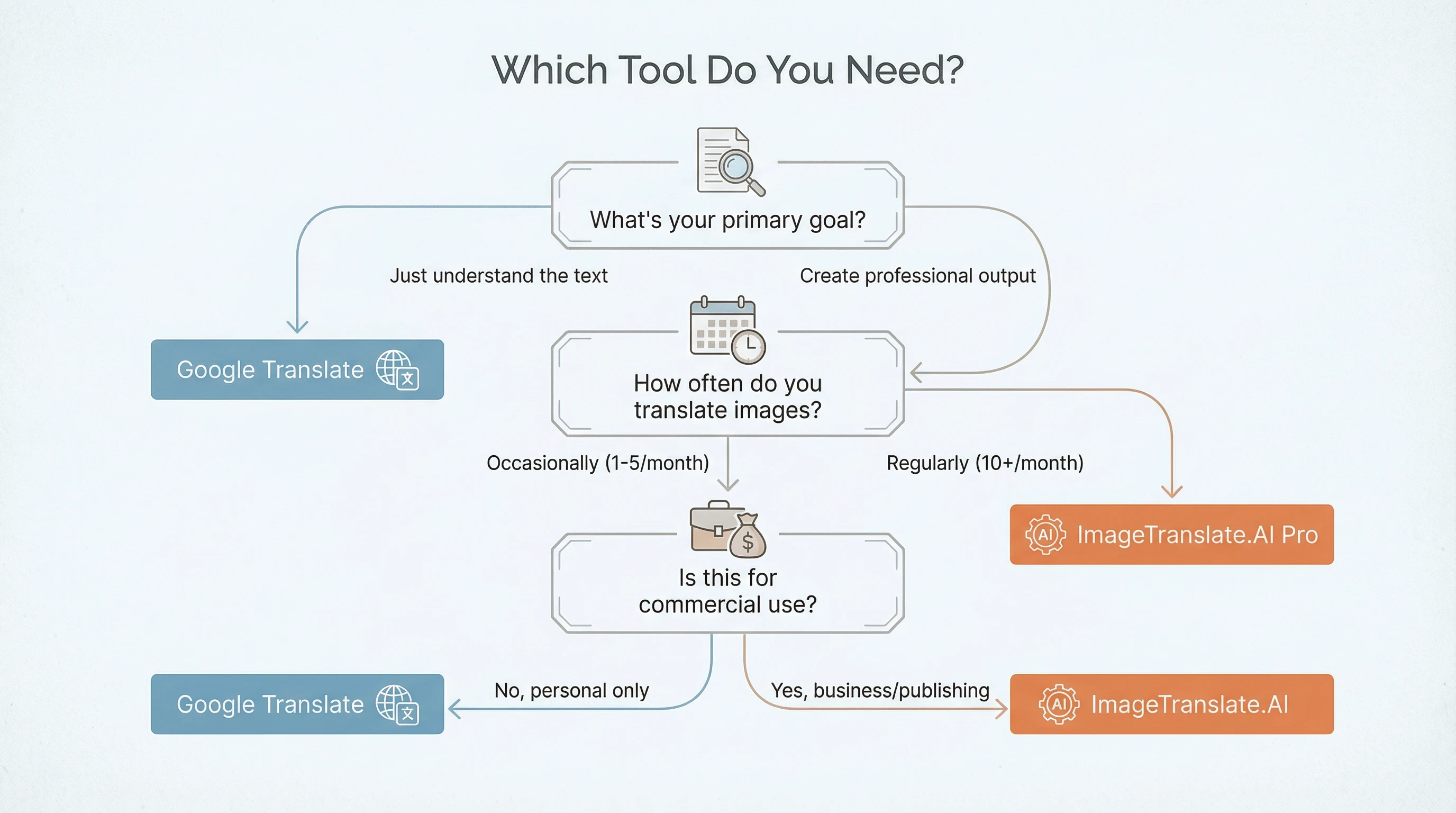
- 1–5 images/month: Google Translate wins (free).
- 10+ images/month with professional needs: ImageTranslate.AI wins. The Starter plan ($8.30/month) often pays for itself quickly.
- Businesses: ImageTranslate.AI usually becomes the obvious choice due to time + design cost savings.
Ease of use
Winner: Google Translate
Point, translate, done. ImageTranslate.AI takes a few more steps, but becomes fast after 2–3 uses.
Which tool for which scenario?
Let’s get practical.
Use Google Translate when…
- Traveling abroad: menus, signs, tickets—anything you just need to understand quickly
- Student research: translating textbook pages for personal study
- One-off personal needs: a single document or image now and then
- Offline situations: flights, rural areas, limited internet (download packs in advance)
- Quick verification: sanity-checking meaning before deciding on a professional workflow
Use ImageTranslate.AI when…
- E-commerce international expansion: localizing product images for Amazon Japan, Alibaba, EU marketplaces
- Expected ROI: sellers often report 40–60% sales increases in new markets after proper image localization.
- Marketing campaigns: ad creatives and social graphics that must stay on-brand
- Content creation at scale: thumbnails, infographics, featured images across languages
- Print materials: brochures, catalogs, menus, signage—high-res is non-negotiable
- Manga and comics: speech bubble conventions + batch workflows
- Professional documents: proposals, decks, reports where appearance matters
The hybrid approach (often best)
Smart users use both:
- Test with Google Translate first to confirm meaning
- Process finals with ImageTranslate.AI to get export-ready, professional images
Conclusion: making your decision
The Google Translate vs ImageTranslate.AI debate isn’t about which tool is “better”—it’s about matching capabilities to needs.
- Choose Google Translate if you’re a casual user who occasionally needs to understand foreign text in images. It’s free, fast, and good enough for personal use.
- Choose ImageTranslate.AI if you’re a business owner, professional creator, or anyone who needs polished output for commercial use. The workflow and output quality justify the cost for regular users.
The breakeven calculation
If you translate 10+ images per month and your time is worth more than $10/hour, ImageTranslate.AI’s Starter plan ($8.30/month) often pays for itself. Screenshot editing can take 15–30 minutes per image; batch processing reduces that dramatically.
Final recommendations
- Start free: Try Google Translate for a new project. If screenshots are acceptable, you’re done.
- Upgrade when it hurts: If you’re manually editing screenshots or missing opportunities due to poor output quality, try ImageTranslate.AI’s free tier (2 images/day).
- Scale strategically: If you hit the free tier limit consistently, upgrade to Starter. If you need batch processing, go Professional.
Ready to test both? Start with Google Translate to understand your content, then try ImageTranslate.AI’s free tier to see the export quality difference firsthand.
Want export-ready results now? Try the Image Translator, or go straight to the Batch Image Translator if you’re translating at scale.