How to Translate Images: Complete Guide

Corey
7/31/2026

Last month, Sarah, an online boutique owner, lost a $15,000 deal with a Japanese distributor. The reason? Her beautifully designed product catalogs were all in English, and the manual process of translating and redesigning hundreds of images seemed impossible within their deadline.
If you've ever faced a similar challenge—whether you're expanding your e-commerce business internationally, trying to read a foreign restaurant menu, or wanting to translate manga that hasn't been officially localized—you know how frustrating it can be when text is locked inside an image.
The good news? Image translation technology has evolved dramatically in 2025. What once required expensive software and technical expertise is now accessible to anyone with a smartphone or web browser.
In this complete guide, you'll learn:
- How image translation actually works (and why it sometimes fails)
- Step-by-step instructions for free tools like Google Translate
- Professional AI-powered solutions for businesses and creators
- Best practices to get accurate, professional-looking results
- Which tool to choose for your specific use case
Quick navigation: Need to translate right now? Jump to Free Methods for instant solutions, or skip to Professional Tools if you need batch processing or layout preservation.
Understanding Image Translation: How It Actually Works
Before diving into specific tools, let's understand what happens when you translate an image. This knowledge will help you troubleshoot problems and choose the right solution.
The Three-Step Process
Image translation involves three steps working together:
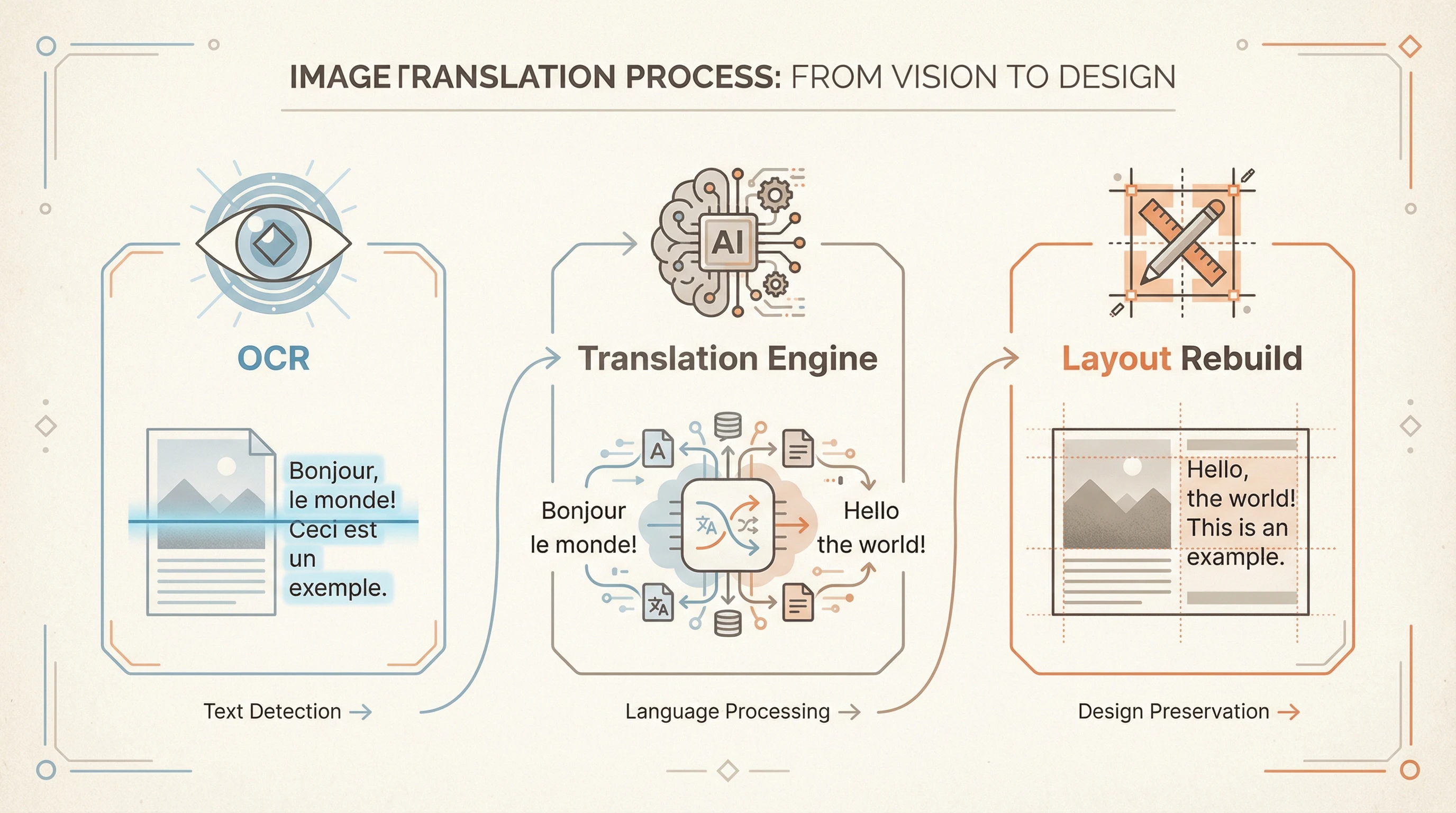
1. Optical Character Recognition (OCR)
First, the software needs to "see" the text in your image. OCR technology scans the image and identifies text regions, recognizing individual characters just like you read words on a page. Modern AI-powered OCR can:
- Detect text at various angles and orientations
- Handle multiple fonts and handwriting styles
- Work with complex backgrounds and low-quality images
- Identify which text belongs together (paragraphs, captions, etc.)
2. Machine Translation
Once the text is extracted, it gets sent to a translation engine—the same technology powering text-based translators like Google Translate or DeepL. The translation engine:
- Analyzes context and meaning
- Applies language-specific rules
- Generates equivalent text in the target language
3. Layout Reconstruction (Advanced Tools Only)
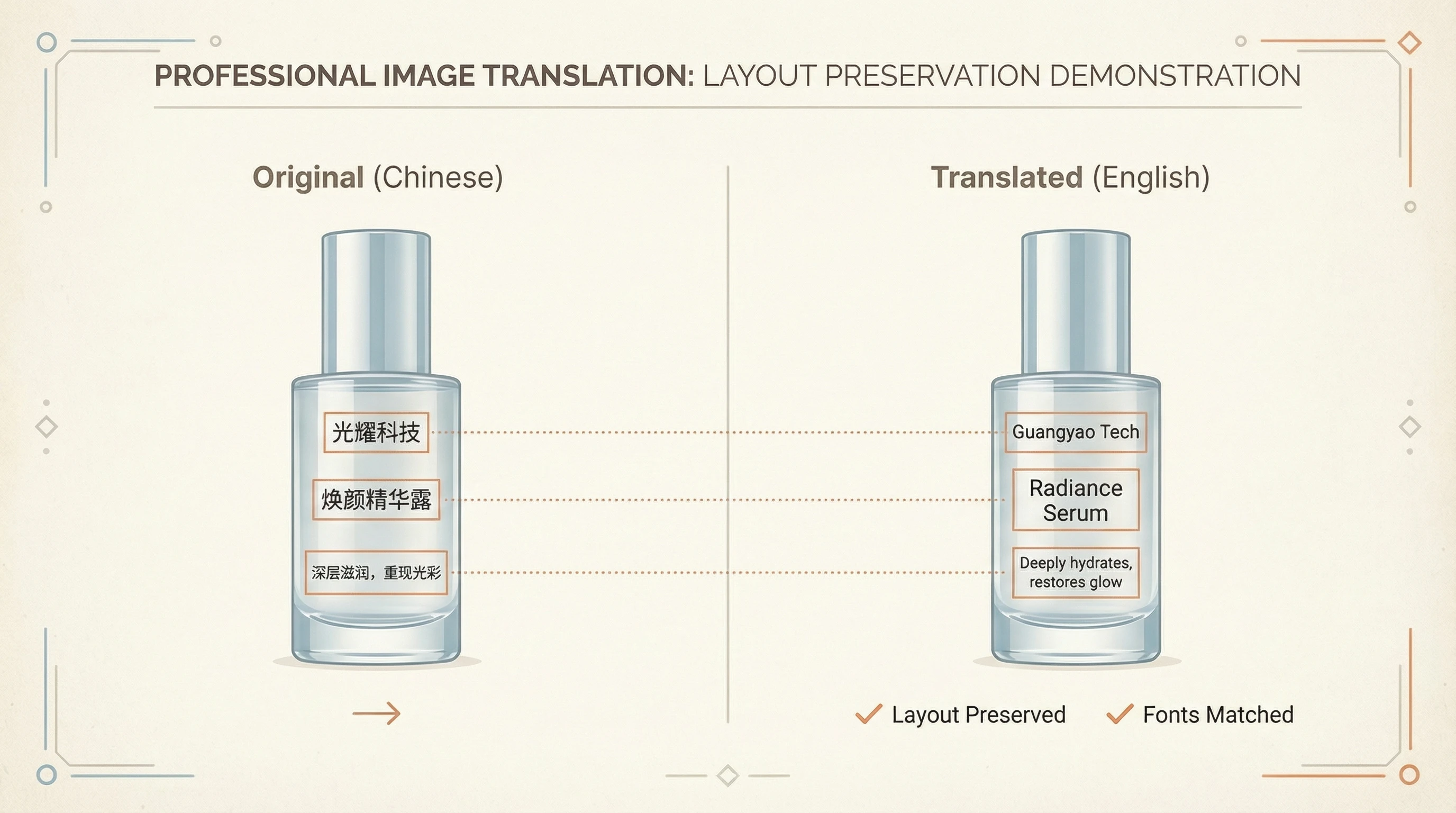
Basic tools simply show you the translated text. Professional tools take an extra step: they remove the original text from the image and replace it with translated text while preserving:
- Original fonts (or similar alternatives)
- Text positioning and alignment
- Colors and styling
- Image background and design
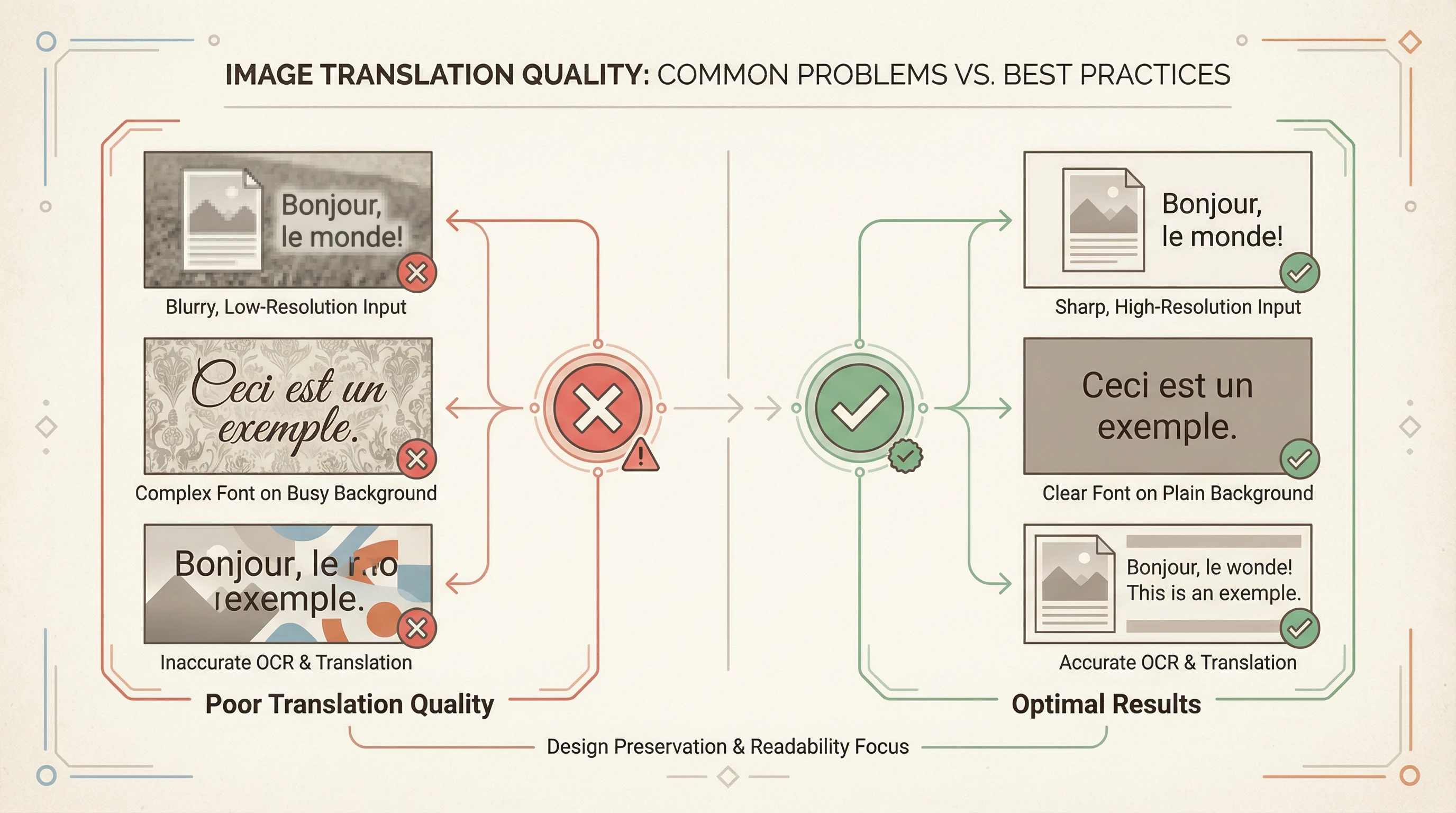
Why Image Translation Sometimes Fails
Understanding the process helps explain common problems:
| Problem | Cause |
|---|---|
| Poor image quality | Blurry or low-resolution images confuse OCR |
| Complex fonts | Decorative or handwritten text is harder to recognize |
| Text on busy backgrounds | When text blends with images, OCR struggles |
| Context loss | Short phrases without context lead to translation errors |
| Layout complexity | Curved text, overlapping elements, or intricate designs are difficult to reconstruct |
Now that you understand how it works, let's explore your options—starting with free tools you can use right now.
Free Methods for Translating Images
If you need to translate a few images quickly and don't require perfect layout preservation, these free tools are excellent starting points. They're ideal for travelers, students, and anyone who needs occasional image translation.
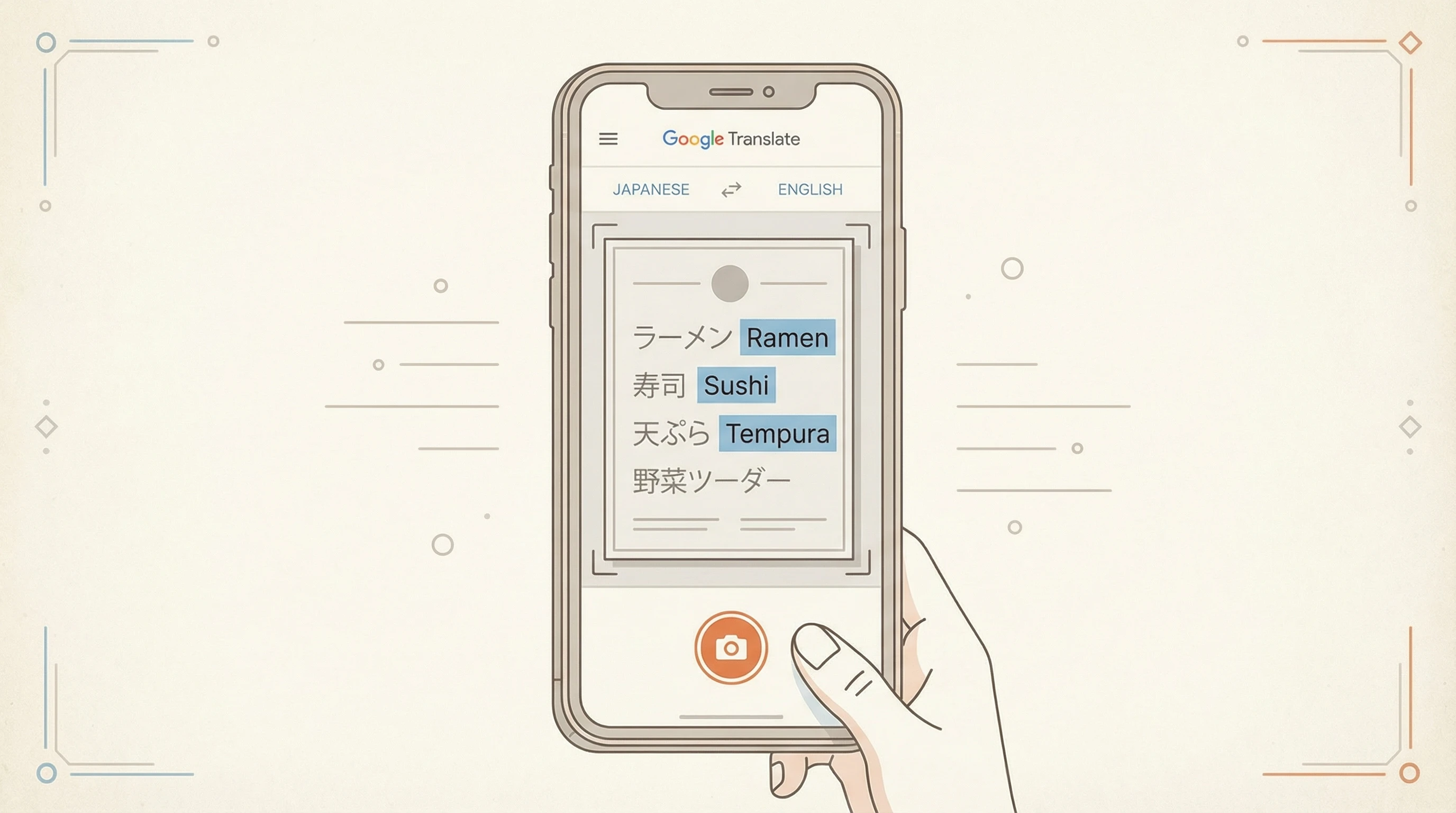
Method 1: Google Translate Mobile App (Best for Quick Translations)
Google Translate's camera feature is the most popular free option for good reason: it's fast, accurate for common languages, and works offline for 59 languages.
What it does well:
- Instant real-time translation (point your camera and see translated text overlay)
- Works offline after downloading language packs
- Handles printed text very well
- Completely free with no limits
Limitations:
- Doesn't export the translated image
- Layout preservation is basic (overlay only)
- Less accurate with handwriting or artistic fonts
- Can't batch process multiple images
Step-by-Step Tutorial:
-
Download and setup
- Install Google Translate from App Store or Google Play
- Open the app and select your languages (from/to)
- Download language packs for offline use (optional but recommended)
-
Translate with camera
- Tap the camera icon
- Point your phone at the text in the image
- The app will auto-detect and overlay the translation in real-time
- For better control, tap "Scan" to capture the image first
-
Translate existing images
- Tap the camera icon, then tap the gallery icon
- Select a photo from your device
- Highlight the text you want to translate with your finger
- View the translation below
Pro tip: For critical translations, use the "tap to pause" feature in real-time mode. This gives you time to read longer text or take screenshots.
Best for: Travelers reading signs and menus, students with textbook images, quick one-off translations.
Method 2: Yandex Translate (Best for Russian and Eastern European Languages)
Yandex, Russia's leading tech company, offers image translation that often outperforms Google for Cyrillic scripts and Eastern European languages.
What it does well:
- Excellent for Russian, Ukrainian, Turkish, and regional languages
- Clean web interface (no app download needed)
- Good context understanding
- Free and unlimited
Limitations:
- No real-time camera translation
- Less accurate for Asian languages
- Slower than Google's mobile solution
- No batch processing
How to use:
- Visit translate.yandex.com
- Click "Select a file" or drag and drop your image
- Choose source and target languages
- Click the image to highlight specific text areas for translation
- Copy the translated text (no visual export)
Best for: Russian/Eastern European language pairs, desktop users, situations where Google Translate struggles.
Method 3: Microsoft Translator (Best for Document Images)
Microsoft's solution offers solid accuracy and integrates well with other Microsoft products.
What it does well:
- High accuracy for document-style images
- Good support for Asian languages (especially Chinese, Japanese, Korean)
- Works on both mobile and desktop
- Conversation mode useful for live translation
How to use:
- Download Microsoft Translator app (iOS/Android) or visit the website
- Tap the camera icon
- Take a photo or select from gallery
- Tap text areas to translate
- Copy or share the translated text
Best for: Business documents, technical content, Microsoft Office users.
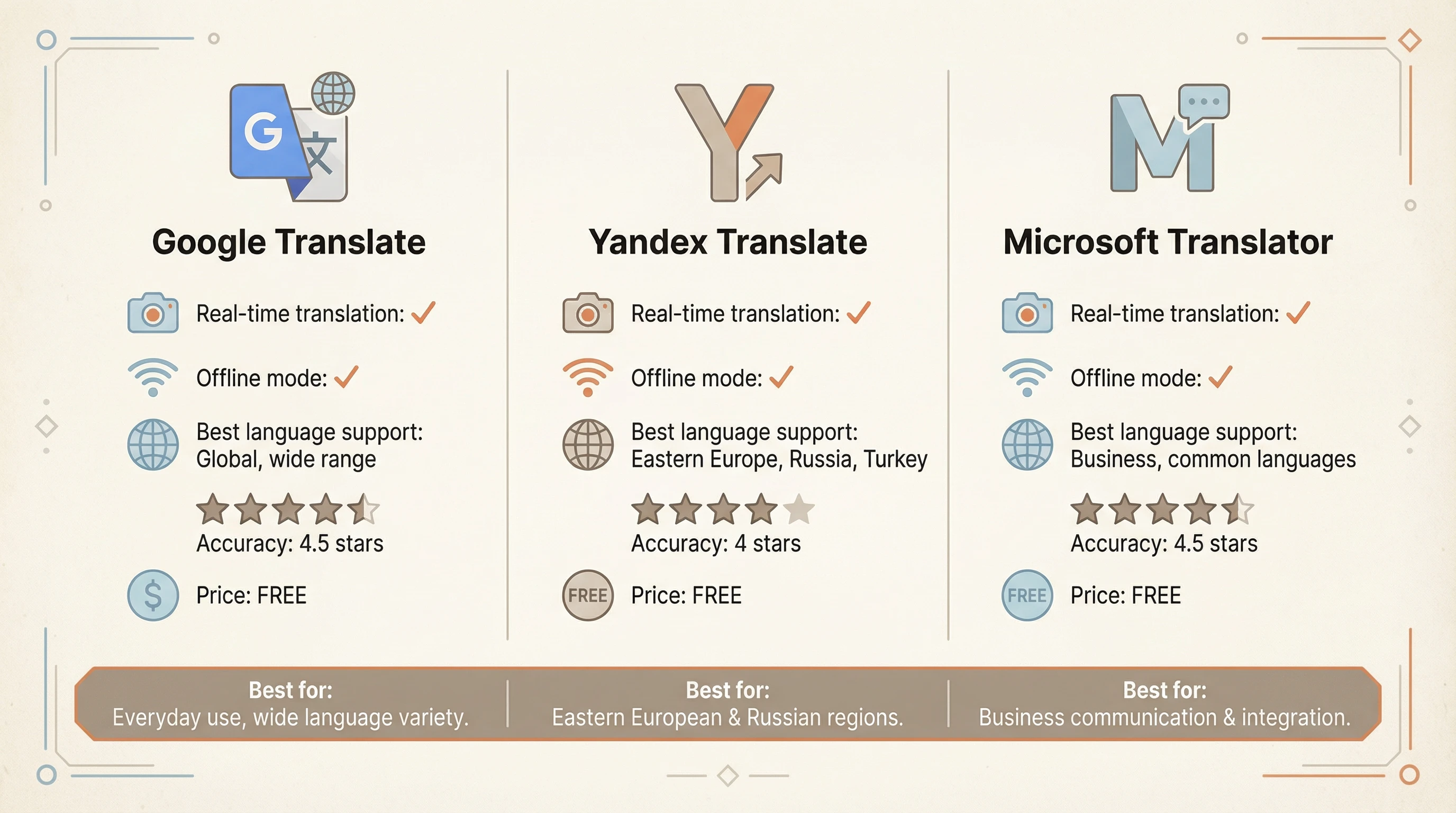
Quick Comparison: Free Tools
| Feature | Google Translate | Yandex Translate | Microsoft Translator |
|---|---|---|---|
| Real-time camera | ✅ Yes | ❌ No | ✅ Yes |
| Offline support | ✅ 59 languages | ❌ No | ✅ Limited |
| Best languages | Major languages | Russian, Eastern European | Asian languages |
| Platform | Mobile app | Web | Mobile + Web |
| Export image | ❌ No | ❌ No | ❌ No |
The verdict: For most people, Google Translate is the best free starting point. Use Yandex for Russian/Eastern European content, and Microsoft if you're already in the Microsoft ecosystem.
But what if you need professional results—preserved layouts, batch processing, or better accuracy? That's where AI-powered image translation tools come in.
Professional AI Image Translation Tools
When free tools aren't enough—you're processing dozens of product images, need pixel-perfect layout preservation, or require professional-quality output—dedicated AI image translation platforms are worth considering.
These tools are designed for business users, content creators, and anyone who needs image translation at scale.
ImageTranslate.AI: Best All-Around AI Image Translator
ImageTranslate.AI is purpose-built for image translation, offering the most comprehensive feature set in the market. Check out our Image Translator to get started.
Key Features:
- 130+ languages supported - Broader coverage than most competitors
- Advanced layout preservation - Maintains original fonts, colors, positioning
- Batch translation - Translate multiple images to multiple languages simultaneously
- E-commerce mode - Optimized for product images and marketing materials
- Manga translator - Specialized handling for comics and graphic novels
- Multiple AI models - Choose from Grok, Gemini, DeepSeek, GPT-5, and Claude for best results
- API access - Integrate into your workflow (Professional/Enterprise plans)
Pricing:
| Plan | Price | Credits | Images/Month |
|---|---|---|---|
| Free | $0 | 20 daily | ~2 |
| Starter | $8.30/month | 5,000 | ~500 |
| Professional | $16.60/month | 12,000 | ~1,200 |
| Enterprise | $83.30/month | 80,000 | ~8,000 |
Prices are per month, billed annually. Month-to-month billing: $9.90 / $19.90 / $99.90.
💡 View detailed pricing plans to find the best option for your needs.
Step-by-Step Tutorial:
-
Getting started
- Visit imagetranslate.ai
- Create a free account or use 2 daily translations without login
- Select source and target languages (auto-detect available)
-
Single image translation
- Click "Choose an image" or drag & drop (JPG, PNG, WebP up to 10MB)
- Select translation mode:
- Translator: Standard mode for any image type
- E-Commerce: Optimized for product images
- Light Novel: Better handling of paragraphs and narratives
- Choose AI model (Gemini recommended for best balance)
- Click "Translate"
- Wait 10-30 seconds for processing
- Download the translated image (original layout preserved)
-
Batch translation (Professional/Enterprise plans)
- Go to Batch Image Translator
- Upload multiple images (drag & drop folder)
- Select multiple target languages
- Choose settings for all images
- Process all at once
- Download as ZIP file with organized folders
Advanced tips:
- Save projects: Load previous translations for consistency
- Use E-commerce mode: Better results for product images with logos
- Try different AI models: If one model struggles, switch to another
- Image quality matters: Upload high-resolution originals for best OCR
What makes it special:
The layout preservation is genuinely impressive. Unlike tools that simply output translated text, ImageTranslate.AI reconstructs the entire image with translated text in the original positions, matching fonts and styles. For product catalogs or marketing materials, this saves hours of manual design work.
The batch translator is a game-changer for e-commerce. Upload your entire product line, select your target markets (Japanese, Spanish, German, etc.), and get back properly translated images ready for your international stores.
Best for: E-commerce sellers, marketing teams, content creators producing multilingual materials, agencies managing multiple clients.
Other Professional Tools Worth Considering
While ImageTranslate.AI offers the most comprehensive feature set, other tools excel in specific niches:
NoteGPT Image Translator
- Part of NoteGPT's AI suite
- Good for academic documents and PDFs
- Integrates with note-taking features
- Free tier available
Best for: Students and researchers
OpenL Translate
- Open-source friendly
- Customizable translation engines
- Good API documentation
- Developer-focused
Best for: Technical users who want control
ImageToText.info Image Translator
- Simple, straightforward interface
- Fast OCR processing
- Basic translation (text extraction focus)
- Free with ads
Best for: Users who primarily need OCR + can handle translation separately
Tool Comparison Matrix
| Feature | ImageTranslate.AI | NoteGPT | OpenL | ImageToText.info |
|---|---|---|---|---|
| Layout preservation | ✅ Advanced | ⚠️ Basic | ⚠️ Basic | ❌ No |
| Batch processing | ✅ Yes | ❌ No | ✅ Yes | ❌ No |
| Languages | 130+ | 50+ | 100+ | 30+ |
| API access | ✅ Yes | ❌ No | ✅ Yes | ❌ No |
| Free tier | ✅ 2/day | ✅ Limited | ✅ Limited | ✅ Yes |
| Best use case | E-commerce, Marketing, Manga, Documents | Academic | Developers | Basic OCR |
Decision framework:
- Choose ImageTranslate.AI if you need professional results, batch processing, layout preservation features, or e-commerce features
- Choose NoteGPT if you're a student/researcher and use their other tools
- Choose OpenL if you're technical and want customization
- Choose ImageToText.info if you only need occasional basic translations
Best Practices for Better Image Translation Results
Regardless of which tool you choose, these techniques will dramatically improve your translation accuracy and output quality.
Image Preparation Tips
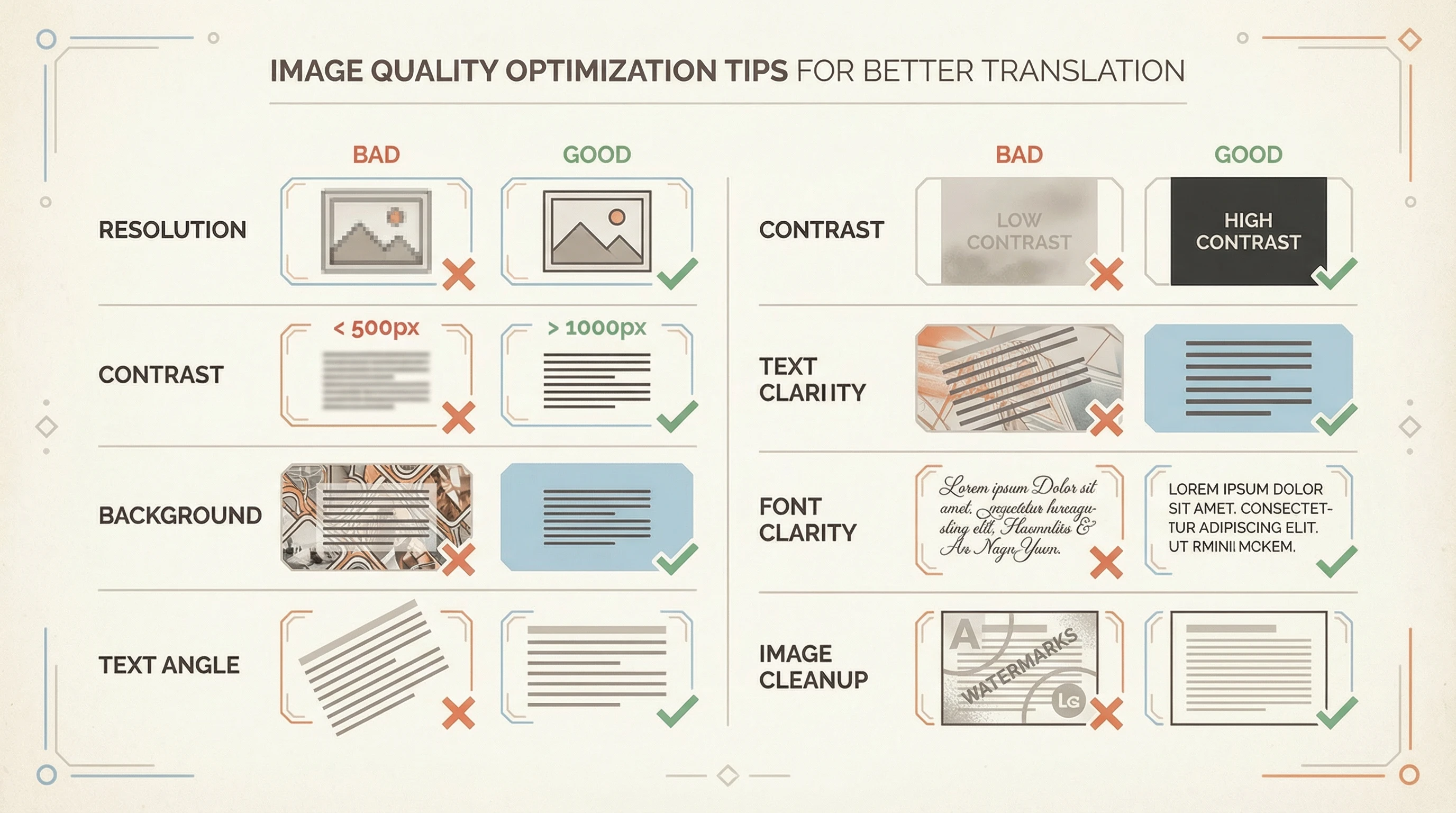
1. Start with high-quality images
- Resolution: Minimum 1000px on the shortest side
- Clarity: Sharp, well-lit images produce better OCR
- Format: PNG for graphics with text, JPG for photos
2. Optimize text visibility
- Ensure good contrast between text and background
- Avoid images where text overlaps complex patterns
- If possible, use images with clean, simple backgrounds
3. Clean up before translating
- Remove watermarks or logos that might interfere
- Crop to focus on the text-containing area
- Straighten rotated or skewed images
Getting Accurate Translations
1. Provide context when possible
- Some tools let you add notes about the content type
- Specify the industry or subject matter (medical, legal, technical)
- Mention if there are brand names or technical terms
2. Verify critical translations
- Use multiple tools and compare results
- Have a native speaker review important documents
- For business-critical content, consider human post-editing
3. Understand language pairs
- Some language pairs work better than others
- English ↔ major languages (Spanish, French, Chinese) are most accurate
- Rare language pairs may need double translation (via English)
Batch Processing Workflows
For E-commerce Product Images:
1. Organize your files
products/
├── category1/
│   ├── product1.jpg
│   ├── product2.jpg
└── category2/
    ├── product3.jpg
2. Standardize image specs
- Same resolution across all products
- Consistent text placement
- Uniform design templates
3. Process in batches by category
- Test one image first
- Process similar items together
- Review sample outputs before processing all
4. Quality control checklist
- Check all text was detected
- Verify translations make sense
- Confirm layout preservation
- Test images in your e-commerce platform
For Document Translation:
- Scan or screenshot at high resolution (300 DPI minimum)
- Process one page at a time for complex documents
- Export translated text to editable format
- Proofread and format in your document editor
Layout Preservation Strategies
When layout matters most (product packaging, infographics, posters):
- Use AI tools with layout preservation (like ImageTranslate.AI)
- Test with a sample image before batch processing
- Adjust text expansion: Some languages (German, French) are 20-30% longer
- Manual touch-ups: Use image editing software for pixel-perfect results
- Keep original layers: If you have design files, translate and replace text layers
Pro tip: For recurring translations (weekly product launches), create templates with easily replaceable text regions. This speeds up future translations significantly.
Use Case: Which Tool Should You Choose?
Different scenarios call for different solutions. Here's a practical guide based on common use cases.
For E-Commerce Sellers
Scenario: You sell on Amazon/Shopify and want to expand to international marketplaces.
Recommended approach:
- Free testing: Start with Google Translate for a few product images to see translation quality
- Scale with AI: Switch to ImageTranslate.AI Professional for batch processing
- Workflow: Upload all product images → Select target markets → Process in batch → Upload to international stores
Expected ROI: Sellers typically see 40-60% international sales increase after proper product image localization, far exceeding the ~$17/month tool cost.
For Manga and Comic Fans
Scenario: You want to read untranslated manga or comics in your language.
Recommended approach:
- Quick reading: Use Google Translate's camera for instant on-screen translation
- Clean translations: Use ImageTranslate.AI Manga Translator for better results with speech bubbles and batch processing
- Tip: Process chapter by chapter, save favorites
Alternative: For popular manga, check if fan translation communities have already done the work.
For Travel and Dining
Scenario: You're traveling and need to read menus, signs, or instructions.
Recommended approach:
- Primary tool: Google Translate mobile app with real-time camera
- Download offline packs for your destination before traveling
- Backup: Screenshot and use Yandex if Google struggles
Pro tip: In restaurants, simply point your phone at the menu. The real-time overlay lets you read dish names and descriptions instantly.
For Students and Researchers
Scenario: You need to translate textbook pages, research papers, or foreign language documents.
Recommended approach:
- Simple documents: Google Translate for straightforward text
- Technical content: Microsoft Translator (better terminology) or NoteGPT (if you use their notes features)
- Academic accuracy: Always verify technical terms with specialized dictionaries
Important: For academic work, always cite the original source, not the translation.
For Marketing and Design Teams
Scenario: Creating multilingual marketing materials, social media graphics, or presentations.
Recommended approach:
- Professional output required: ImageTranslate.AI Professional or Enterprise
- Workflow integration: Use API for automated localization pipeline
- Quality control: Human review for brand voice and cultural appropriateness
Best practice: Keep design files (Figma, Photoshop) and only use image translation for final exports or when source files aren't available.
For Small Businesses
Scenario: Restaurant owner wants multilingual menus, shop wants bilingual signage.
Recommended approach:
- One-time translation: Use ImageTranslate.AI free tier (2 images/day)
- Professional touch: Get 1-2 images done by AI, then have a translator review
- Print and use: Most print shops accept the translated image files directly
Cost-effective tip: Process 2-3 images daily using the free tier instead of paying for a monthly subscription.
Conclusion: Your Next Steps
Image translation has transformed from a specialized technical challenge into an accessible, everyday tool. Whether you're a traveler pointing your phone at a menu, an e-commerce seller expanding globally, or a manga fan accessing untranslated content, you now have powerful options at your fingertips.
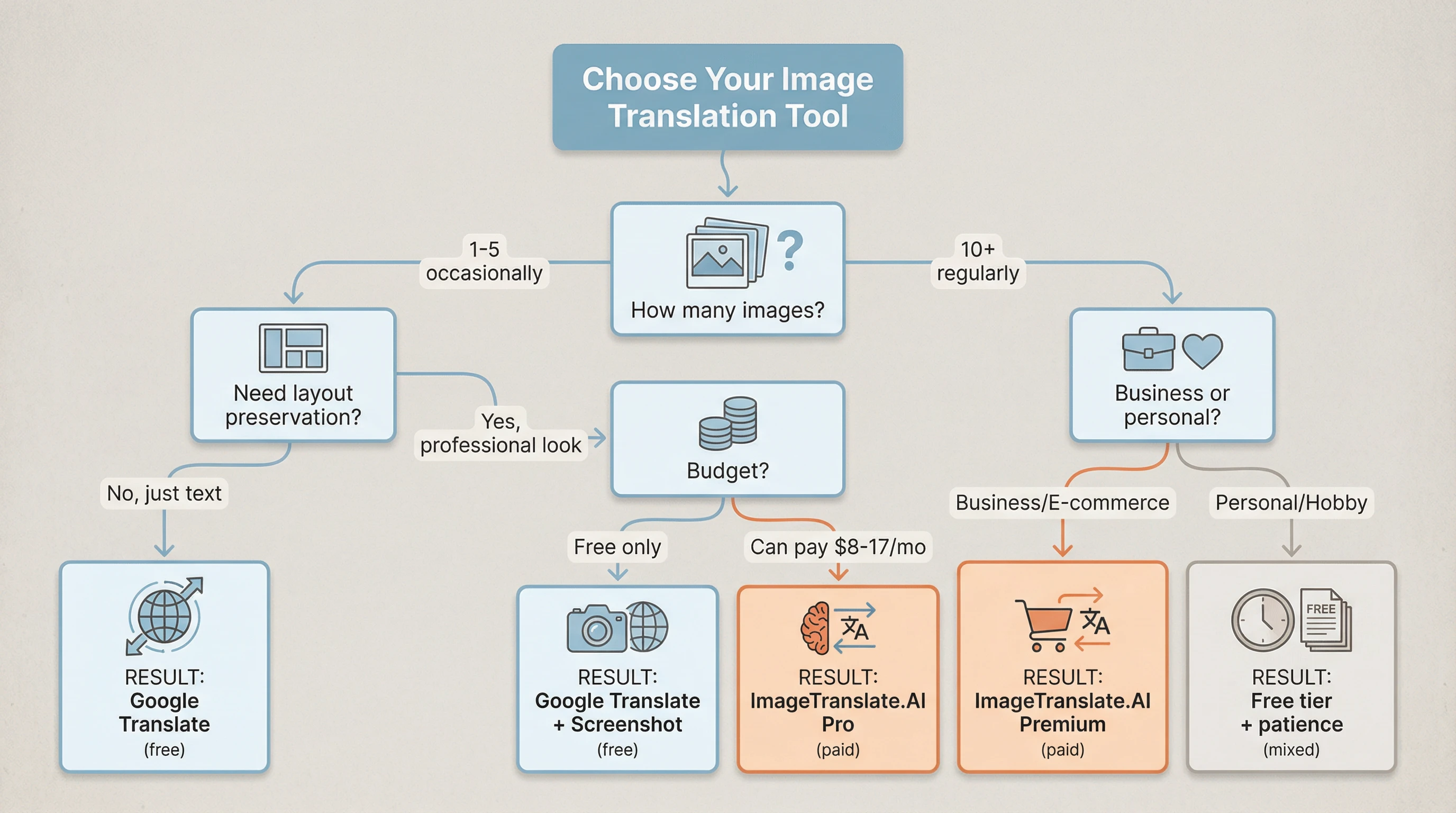
Quick Decision Guide
Choose free tools (Google Translate, Yandex, Microsoft) if:
- You need occasional, one-off translations
- Real-time camera translation is sufficient
- Layout preservation doesn't matter
- You're comfortable with screenshot-based workflows
Choose professional AI tools (ImageTranslate.AI, etc.) if:
- You process multiple images regularly
- Layout and design must be preserved
- You need batch processing
- Professional output quality is essential
- Time savings justify the cost
Action Steps Based on Your Goal
If you're starting right now (need to translate 1-2 images today):
- Open Google Translate on your phone
- Follow the step-by-step guide above
- Take a screenshot if you need to save the translation
If you're evaluating for business use:
- Try ImageTranslate.AI's free tier with 2 sample product images
- Compare the layout preservation quality
- Calculate your monthly image volume
- Choose the appropriate plan based on ROI
If you need ongoing translations:
- Start with free tools to understand your requirements
- Track how much time you spend and results quality
- Upgrade to AI tools when volume or quality needs increase
- Implement batch processing workflow to maximize efficiency
The Future of Image Translation
AI technology continues to evolve rapidly. By 2026, we can expect:
- Real-time video translation (already in beta)
- Better handling of artistic fonts and handwriting
- AR-based instant translation overlays
- Near-perfect layout reconstruction
- More affordable pricing as technology matures
The barrier to global communication keeps dropping. Whatever your reason for translating images, you now have the knowledge and tools to do it effectively.
Ready to translate your first image? Start with Google Translate for free, or try ImageTranslate.AI for professional results with preserved layouts.
Frequently Asked Questions
Can I translate handwritten text in images?
Yes, but accuracy varies significantly. Google Translate handles printed handwriting reasonably well. For casual handwriting, expect 60-80% accuracy. For best results, ensure good lighting, clear writing, and sufficient contrast.
Why is my translated text longer than the original?
Different languages have different text lengths. German is typically 30% longer than English, while Chinese is 30% shorter. Professional tools account for this, but you may need to adjust font sizes or layouts.
Are these tools secure for confidential documents?
Free tools (Google, Yandex, Microsoft) process images on their servers and may retain data according to their privacy policies. For confidential content, use tools with privacy certifications or consider offline OCR + translation software.
Can I translate images with multiple languages?
Most tools detect only one source language per image. If your image contains multiple languages, you'll need to translate separately or crop regions for individual processing.
What's the best image format for translation?
PNG is best for graphics, logos, and screenshots (lossless). JPG works well for photographs. Avoid GIFs (low quality) and WebP (limited support in some tools). Minimum resolution: 1000px on the shortest side.
Can I edit the translated text before exporting?
This depends on the tool. ImageTranslate.AI shows you the extracted text before final processing. Most free tools don't offer this feature—you'll need to screenshot and edit manually in image editing software.
Last updated: July 2026 | Have questions or suggestions? Let us know.